
Art Installation · A gallery installation index

PLINTH

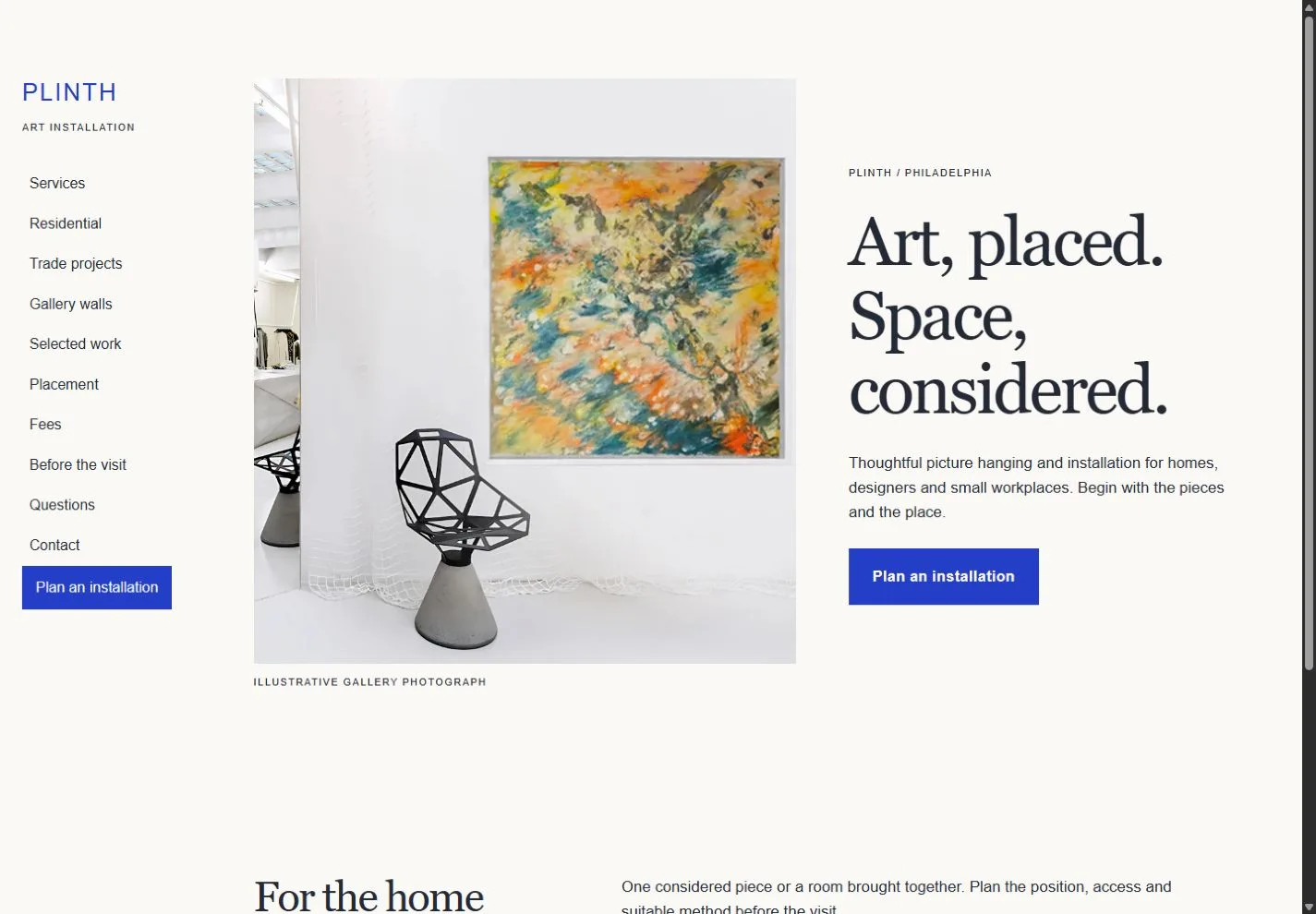
A narrow cobalt-and-paper desktop rail frames offset photographs, exhibition labels and placement studies. The mobile directory and installation brief carry the same quiet gallery precision.
For the studio that gives art its place

A complete installation website for residential picture hangers and small art installation teams, connecting placement, practical site preparation and a clear project brief.

Colors and typography

The named PLINTH palette is included. In Bricks, open Styles → Colors → PLINTH. The HEX values below are selectable.

Canvas

#FAF9F6

Ink

#242A35

Surface

#E6E9F5

Accent

#243EC7

White

#FFFFFF

Stone

#D6D1C7

Type styles

Georgia display and Arial information. System fonts with no external font request.

Customize colors and fonts in Bricks

What to configure before launch

Replace the fictional studio, people, coverage, illustrative project and USD fees. Confirm accepted artwork, wall and access requirements, owner permissions, liability and care terms. Separately scope heavy objects, mirrors, specialist access, transport, storage and conservation. Use your own cleared project photography or review the supplied stock photo licences and depicted artwork rights. Configure mail delivery and both confirmations. Scheduling, payment and secure photo/document exchange need owner setup. Live forms send no message and reserve no installation.

Requires a separately licensed Bricks installation. The download includes photo credits and the route map.

Read the template license
PLINTH actual homepage preview for art installation

Every page.
One personality.

21 complete business-page designs plus a native header and footer. Includes system typography, a native palette, responsive layouts, a Bricks mobile menu and real FAQ buttons.

BRICKS 2.4.5 · NO DESIGN ADD-ONS

Ready for your
own point of view.

The ZIP includes a native unified Bricks package, a page route map and a setup guide. Your Bricks theme license is separate.

Import the inner package through Bricks Settings → Import/Export, then create your pages from the saved designs. Add accurate business details, review the illustrative policies and verify form delivery before publishing.

Read the setup guide